

Signing up with Inkit for Government
Before you start
Confirm your organization's Inkit subscription, impact level, and access requirements with your administrator or Inkit representative. A Platform One identity and access to an Inkit organization are separate requirements.
Platform One accessNew Platform One accounts do not automatically include access to every service or impact level. Coordinate the required access and Appgate setup with your onboarding contact before opening an IL4 or IL5 environment.
Create your Platform One account
If you already have a Platform One account, continue to Sign in to Inkit below.
-
Open Platform One registration. Review its prerequisites and click Continue. Have your work email and onboarding contact information ready. Follow the site's guidance for CAC or MFA and any additional access requirements.
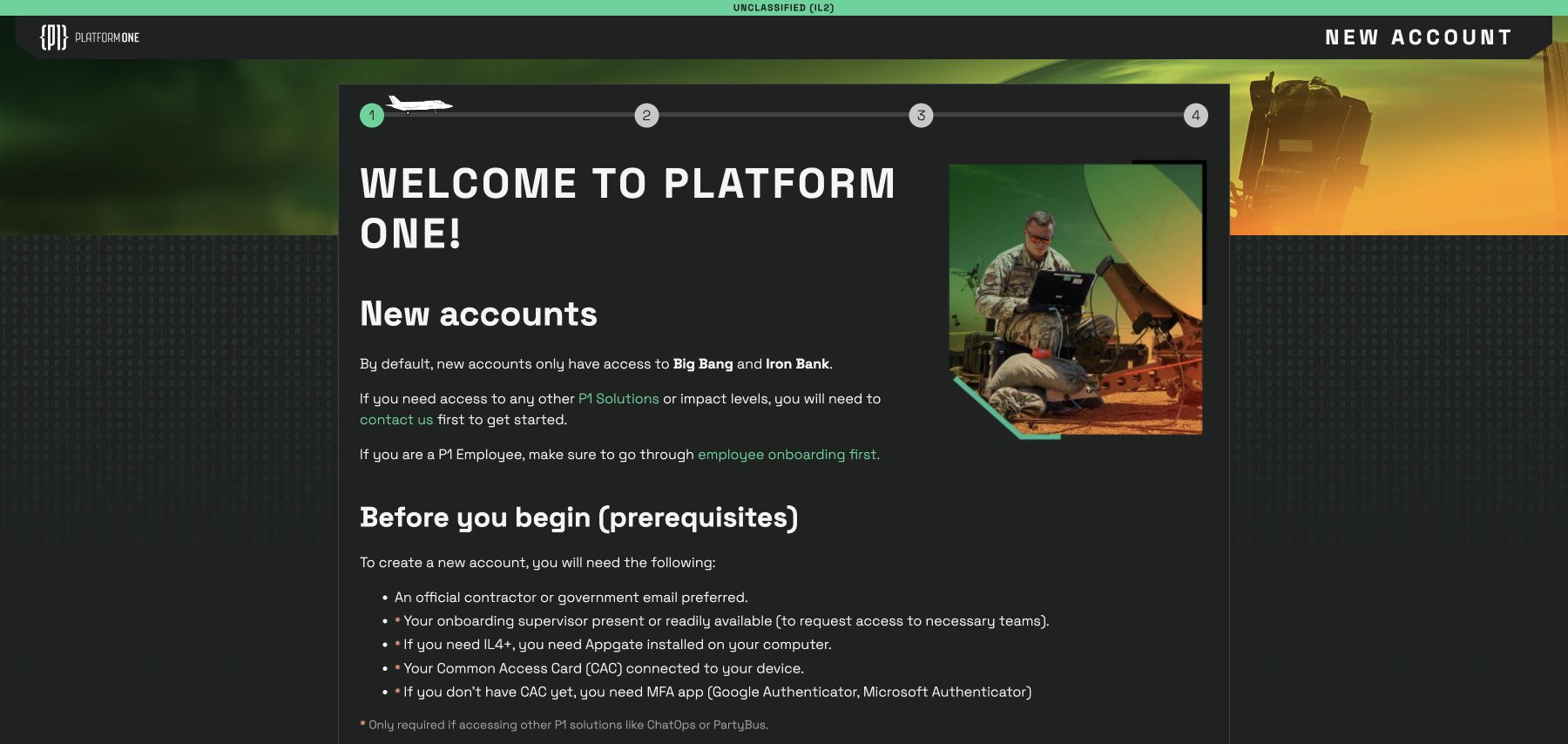
Current Platform One website, captured November 3, 2026.
-
Complete Create your account using your own identity and affiliation. Choose a username and follow the password requirements displayed on the page. The screenshot shows the registration form when no DoD PKI/CAC is detected; the site directs CAC users to connect their reader and reload.
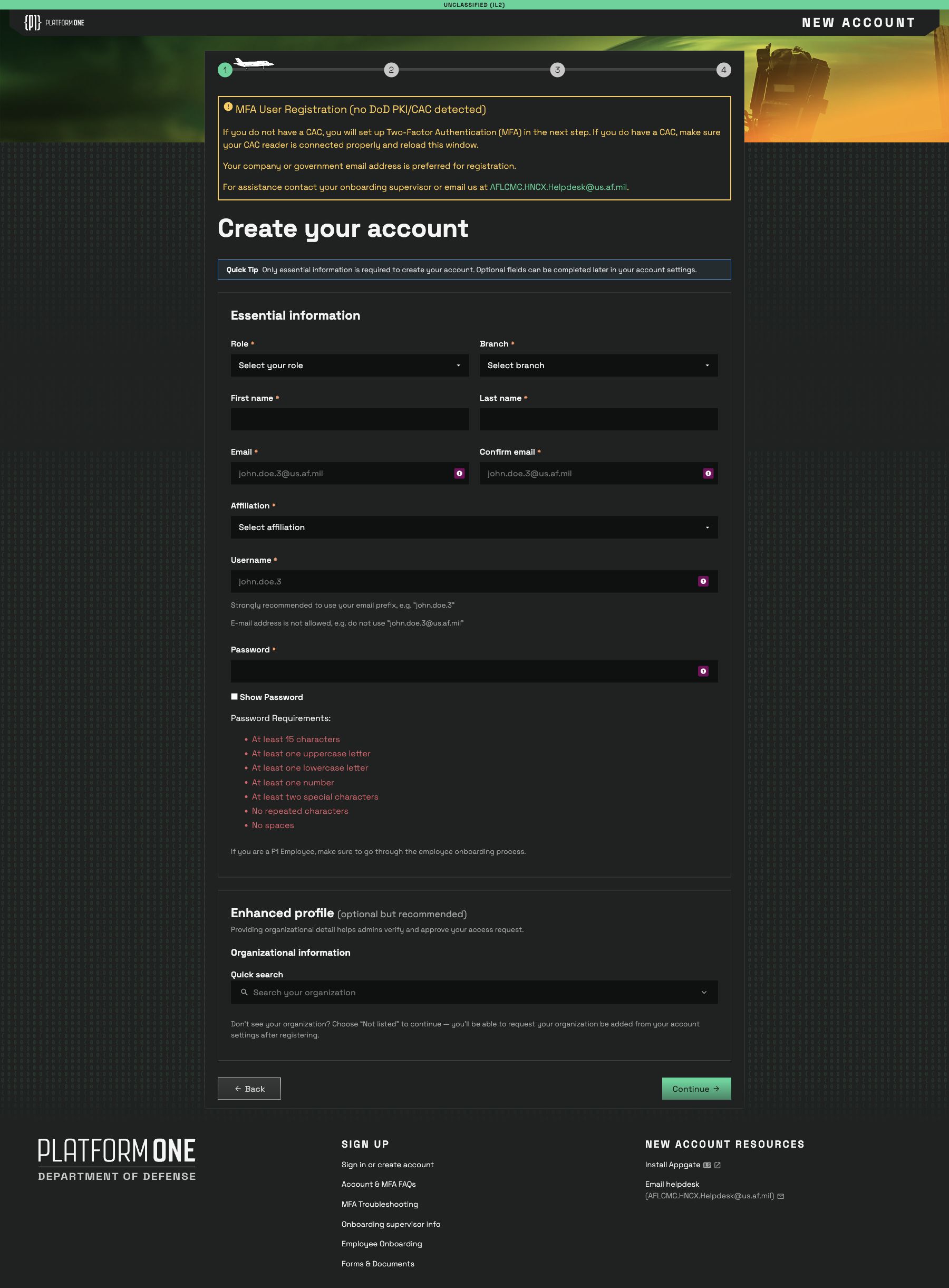
-
Continue through the provider's remaining enrollment and authentication prompts. Use the official Platform One account guide and the help links on the registration page for current instructions.
Sign in to Inkit
Open the environment assigned to your organization:
| Security Level | URL |
|---|---|
| IL4 | inkit.il4.2f.mil |
| IL5 | inkit.il5.2f.mil |
-
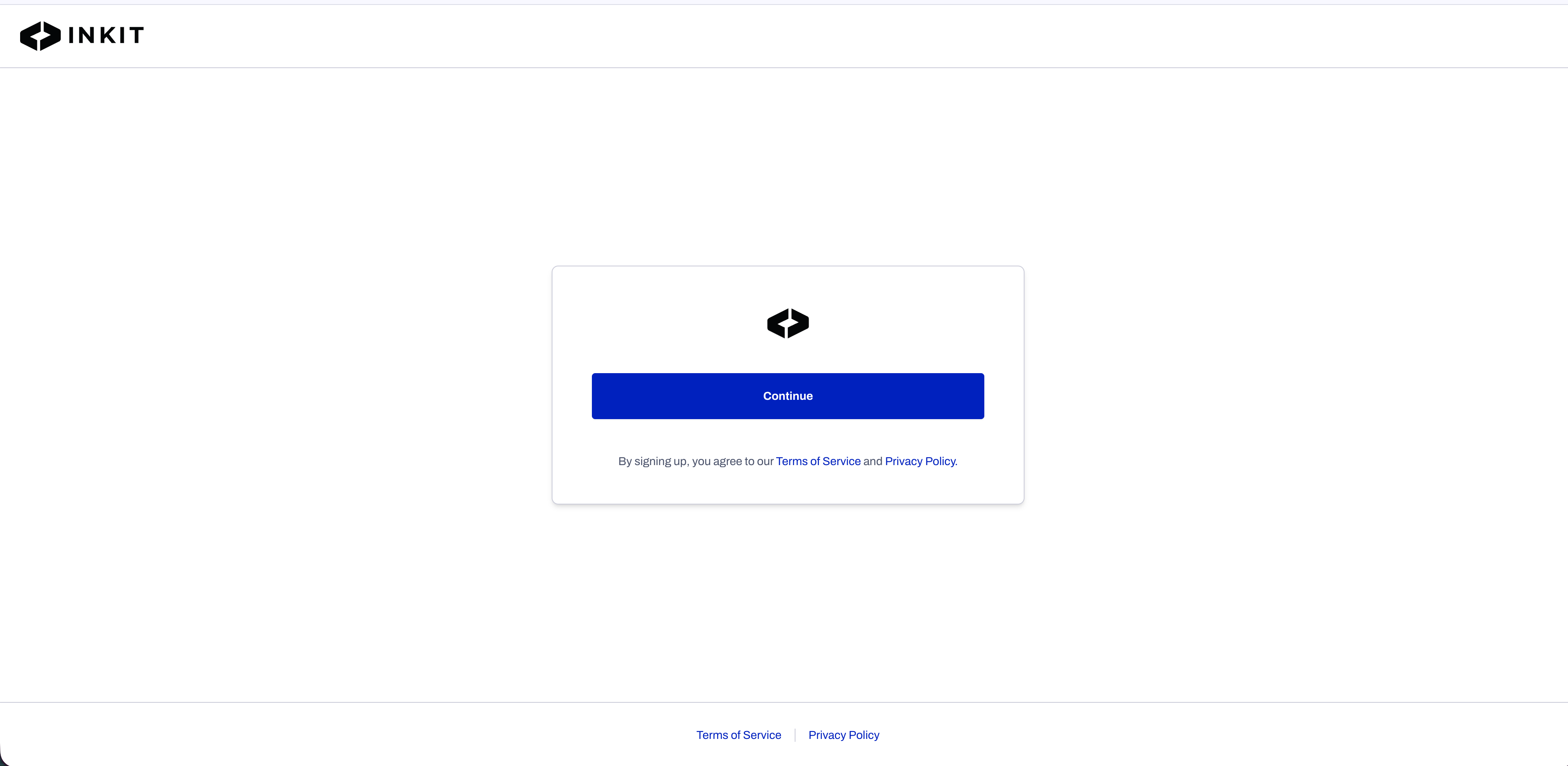
Click "Continue" on the Inkit landing page.
-
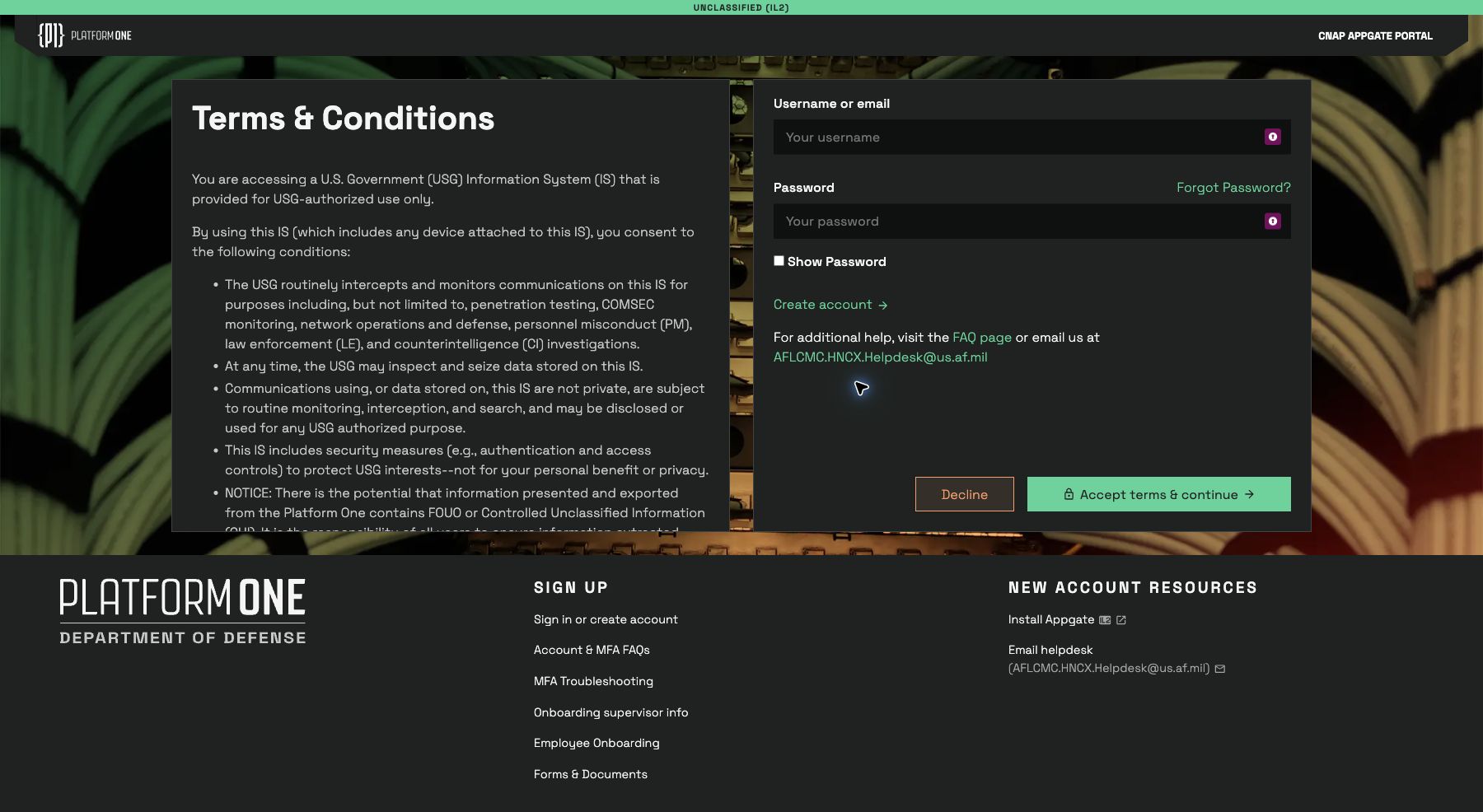
Authenticate with Platform One and follow its verification prompts. Review the displayed terms before choosing whether to accept them. The current non-CAC login has Username or email, Password, and Accept terms & continue controls.
-
After authentication and any required access approval, continue to your Inkit environment. If Activate Inkit Account appears, enter the License Key supplied by Inkit and click Continue. Users whose access has already been provisioned may not see activation.
Need help getting access?Contact your onboarding administrator for Platform One or Appgate access, and your Inkit administrator for organization membership or license activation. Creating a Platform One account alone does not add you to an Inkit organization.
Adding your team
Each team member needs the required Platform One identity and environment access before using Inkit.
- Open the account menu in Inkit and select Manage Organization.
- Open Users, then select Add User.
- Enter the user's email, select the appropriate Roles, and click Add User. Use the email associated with their intended identity.
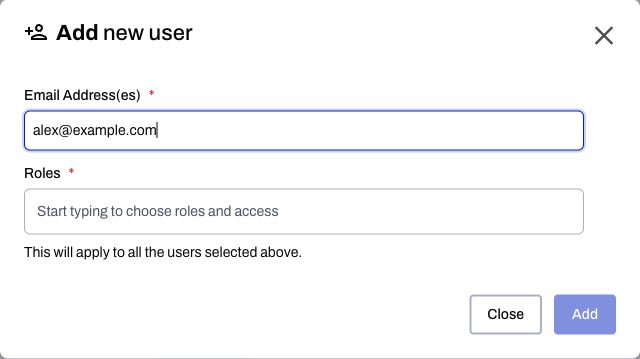
Local example using the production application code. Platform One registration and government environment access happen separately.
See Adding a user and Assigning roles to a user for organization access controls. Team members sign in through their assigned environment URL above.
Updated 10 days ago